Screencast Overview at:
http://www.youtube.com/watch?v=zA0RWnX31yw
Most of you probably already know how to create Powerpoint presentations. In case you don't there are
some guides below. This skills page will focus more on how to find, publish, and share useful presentations. Firstly, it's worth nothing that Powerpoint is not the only option for creating presentations and whereas Powerpoint costs hundreds of dollars to legally purchase, some other optoins are free.
There are also a number of sites that allow people to upload their presentations so that other people can view (and sometimes download) them. Some of these are:
Here are some specific examples:
- Some presentations from Prezi, Slideshare and Authorstream can be downloaded, but you'll need to create an account with each in order to do so. Presentations made with Google Docs can also be downloaded, but there is currently no directory listing the Google Presentations. You can however go to Google and enter "site:https://docs.google.com/presentation" before your search term. (e.g. searching for site:https://docs.google.com/presentation Subordinate conjunctions)
Downloadable Powerpoints
Free Presentation Templates (Google Slides & PPT) Google Slides
How to embed presentations on your blog
Prezi
Below a Prezi presentation, click 'embed'.
You can then select your desired width and copy the embed code.
Powtoon
From your Powtoon Dashboard, click 'show details' for the desired presentation.

Then select the 'share' tab, choose your desired size, and copy the code.
Slideshare
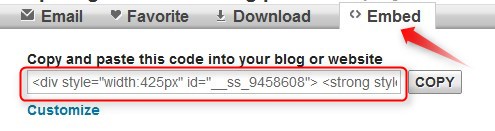
On the presentation page (Slideshare or other site), click 'embed' and copy the code. Customize if you wish.
Create a new post on your blog. Give it a title. Click 'edit html'. Paste the code, label appropriately.
How to download online presentations
From Slideshare
First, log in to your Slideshare or Authorstream account. When users publish presentations, they have the choice of making it available for download or not. If a presentation is downloadable, you'll be able to click on the download link. You can also select the download option when searching for content, so that you'll only see downloadable presentations.
When you find one you'd like to download, you should see a 'download' link at the top of the presentation. Click that and save the file. 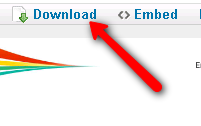

From Google Presentations
Then cick the link to the presentation that looks like this 
On that page, click Actions/Download at PPT
Below are some additional resources. You don't have to do anything with these. They are just here for your information. Guides
Tech How to's