Wednesday, October 12, 2011

Getting Started with Google+

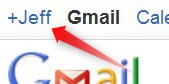
To get started with Google+, click on the +YourName in the upper left of your Gmail Window (or go to plus.google.com)

The first time you use Google+, you'll need to enter information about gender and age. Click Join. 


You'll see several screens that ask you about profile information and adding people to circles.  You can enter information or ignore and click 'continue' each time. 

If you see Jeffrey Lebow at some point, click 'Add to circles'. 

 Then 'create new circle' and enter 'TTP'.


If you see 'Jeffrey Lebow is hanging out", click 'Join this Hangout'.
Hang out.  Smile when Jeff takes the Class Hangout Screenshot Picture.


Additional Google+ Links


Wednesday, October 5, 2011

Week#5

 The CALL Buffet - Week#5
Choose the buffet items of most interest and dig in! You will probably NOT have enough time to do all of the tasks mentioned.
________________________________________________________
Presentations:
Take a look at the Presentation Guide.
Task: Look at some of the specific examples there. Try to embed one on your blog. (see presentation guide for details on how to do this.  Example here)
Optional Tasks: Try to create and embed a Google presentation (guide here) on your blog.  Try to create your first prezi.
________________________________________________________
Audio
Look at the Audio Guide
Tasks:
- Explore
the sites listed there and Bookmark at least 2 audio sites using Diigo
- Use Audacity to record an mp3 file.
- Upload it to: JeffLebow.net/ttp-files 
     ID: pufsttp  Password: 4CALL-fun
     Edit/Choose File / Upload / SAVE
- Post that audio file on your blog with a short description (guide here) (example here)
________________________________________________________
Video
Look at the Video Guide
- Explore the sites listed there and Bookmark at least 2 video sites using Diigo
- Go to YouTube.com, find any video of interest and post it on your blog (instructions here)
- Use a video download site to save a video file from a YouTube Video
- Use your webcam to create and post your own video on YouTube.  Become a YouTube Star!

_________________________________________________________
At the end of class, use Google Reader to see what your classmates have posted and make a couple of comments.

Wednesday, September 28, 2011

Week#4


Post photos to your blog.
The easiest way to do this is shown
here in the Blogger Guide. Example here
If you’d like to experiment with Google’s Photo service Picasa, here’s how.
Picasa allows you to create and
embed slideshows like this on your blog. Task: post at least 5 photos with short descriptions on your blog (either five in one single post or fives posts with one photo each).


Use Google Reader to subscribe to blogs (your classmates and many others). Download the PUFSTTP-Fall2011.opml here
Google Reader Guide Here
Task: import the above opml file and browse some of the blogs you’re subscribed to.


Comment on your classmates’ blogs.  Toward the end of class, use your Google reader to look through you classmates blogs. Task: Make at least two comments.


Update your blog
Task: If you haven’t already done so, edit your ‘About Me’ page to include a short introduction.


Diigo Review:
Task: Edit the 'Resources Page of your blog. Add a link to your Diigo page.
Then browse from the websites buffet and bookmark at least three sites using Diigo. (Diigo Guide here)


Take a look at the Presentation Guide.
Task: Look at some of the specific examples there. Try to embed one on your blog.
Optional Tasks: Try to create and embed a Google presentation (guide here) on your blog.  Try to create your first prezi.

Wednesday, September 21, 2011

Week#3


CALL Week#3 Agenda
Hot Potatoes & Activity Websites


  • Go to the Activities Guide and follow instructions.
    - Look at Hot Potatoes examples
    - Create any kind of Hot Potatoes activity. The activity can be very simple (i.e. a 3 questions quiz, a gap activity with a few blanks, etc.). Look at the Hot Potatoes Guide for help.
    - Save the HP activity (Save as & Create webpage) in c:\temp and save a copy on your USB drive. Make sure the file name includes your name and class#.
    ______________________________________________________________

    -
    (Optional) Post a Hot Potatoes Activity on your  blog.  
    - Create a ‘new post’ on your blog.
    - Then paste this code into a blog post (make sure to use  'Edit HTML tab, not Compose tab)
     <iframe src="URL Here" frameborder="0" height="500" width="600" scrolling="auto"></iframe> (to find that code, click Questions on the LearningCall.net menu.
                                                                                                 Click on Hot Potatoes Question)

    - In another tab, upload that the Hot Potatoes html file to JeffLebow.net/ttp-files
          (access info on handout)
    - Once the file is attached and the post saved, RIGHT click the html file and 'copy link location'.
    -  In your 'new post' , paste that URL into the the code where it says 'URL Here'.
    _____________________________________________________________
     
  • (Optional) Use Google Forms or and try to create a basic quiz or survey with at least two questions. Post a link to that quiz (or embed it) in a blog entry on your blogger.com blog.
     
  • Explore some of the websites on the Activities Guide which have many, many different kinds of activities. Remember to use Diigo to bookmarks sites you might want to visit again.
     
  • HOMEWORK - Bring five digital photos with you to class. Try to choose photos of things that are important to you (people, places, events, etc.)

Wednesday, September 14, 2011

Week#2 (Fall 2011)

Today's Agenda

Hour#1
Blogger

  • Create your Blogger Blog as shown in the Blogger Guide 
  • Go to you main Docs page.  docs.google.com
    You should see a spreadsheet entitled 'Fall 2011 Class# MegaContact Page'
    Open that spreadsheet and add the URL of your blog on the appropriate line. 
  • Decide whether you'd like your blog to be public or private.
    If you'd like it to be public, do nothing.
    If you'd like it to be private, watch this video, Go to your Dashboard/Settings/Permissions, and change your blog reader settings 'Only people I choose. Please choose pufslebow at gmail dot com' and jefflebow at gmail dot com.
  • Format your blog with Pages & Course Categories.  Here's an example of how you can format it and here are instructions on how to do so
  • Post a photo on your blog.  Instructions here.  Add the label 'Photos'. 
  • Create a short blog post about anything you like - TTP so far, CALL thoughts/wishlist, Chuseok experiences,etc. 


Hour#2
Diigo
(Social Bookmarking)
  • Look at the Diigo Guide. Register at Diigo, join the Learning Call Diigo group, browse websites, and bookmark at least five websites.

If time permits (or if you get bored or frustrated with above tasks), feel free to check out some future 'buffet items'.

Finding, creating, & publishing activities & games.
 Activities Guide    Hot Potatoes Guide

Creating, Editing, & Publishing Audio files
Audio Guide


Tuesday, September 13, 2011

Irfanview (Photo Editing)


Irfanview is a simple image editing program.
You can download Irfanview here 


The most common functions are cropping and resizing.


To crop an image, highlight the portion you want crop and click

Image/Crop Document (or ctrl-Y)


To resize an image, click Image/ Resize/Resample or ctrl+r


Then select the desired pixel size of the image. 


 For information about more advanced features, look at the tutorials  here,  here,  and here and watch a screencast tutorial below.